

Adding Date, Time or Comment to Your Images
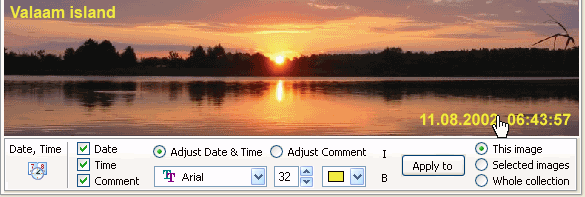
One of the SnapTouch unique features is the ability to prepare images for printing by adding on them date, time or comment. Date, time or comment will be visible on the printed image so you will always be able to tell when it was taken!
 To add date, time or comment to an
image, enable the "Date stamp mode" by clicking the corresponding toolbar button. In the
settings bar that appears at the bottom of the desktop specify the stamp contents: date and time when the picture was taken,
date only, time only or comment. You can also choose the font family, color, size and style (to display the stamp). You
can also position the stamp using the drag-and-drop technique. When you make all necessary settings, click "Apply" to apply them.
To add date, time or comment to an
image, enable the "Date stamp mode" by clicking the corresponding toolbar button. In the
settings bar that appears at the bottom of the desktop specify the stamp contents: date and time when the picture was taken,
date only, time only or comment. You can also choose the font family, color, size and style (to display the stamp). You
can also position the stamp using the drag-and-drop technique. When you make all necessary settings, click "Apply" to apply them.
Pay your attention that positions of shooting date and comment are customized independently as well as their appearance (font size, color, etc.).